Galpi
Code editor
Open the workspace the agent works in with VS Code in the browser or VS Code on your computer, and change it yourself.
Code ▾ above a chat has two ways in. You edit the workspace (files/ and each repository under repos/…) yourself, and run commands or other coding agents (Claude Code, Codex CLI …) in its terminal.
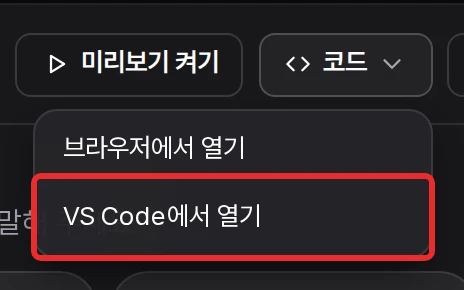
| Way | What | What you do |
|---|---|---|
| Open in the browser | The workspace's code-server in a new tab, without Copilot or AI chat | Nothing |
| Open in VS Code | VS Code on your computer; the Galpi extension sets up SSH | Install the Galpi extension (one .vsix) once |
Where and who
- On E2B and Sysbox nodes. Not on Fly Sprites (the address can't be hidden, and an open connection keeps the VM awake), nor on a local VM.
- The workspace needs 4 GiB of memory or more (VM size M and up).
- Only the chat's owner opens it. Code isn't shown on phones or in chats without a project.
- To turn it on: allow it in System admin → Settings → Code editor (allowed by default), then switch the browser and VS Code desktop ways on separately in Project settings → Preview → Code editor. New projects start with both on.
Opening in VS Code
-
Download the Galpi VS Code extension (.vsix) from My settings → VS Code desktop. One file for Windows, macOS and Linux.
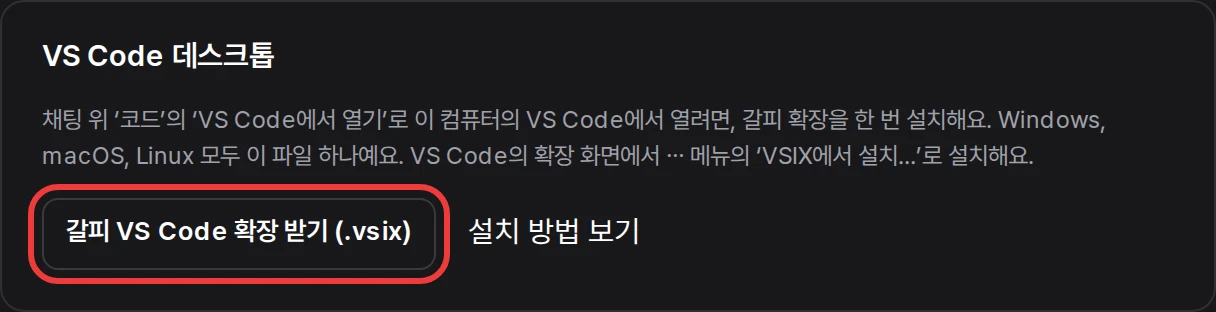
Downloading the extension in My settings. -
In VS Code's Extensions view, ⋯ → Install from VSIX…, then start VS Code once so it registers
vscode:links.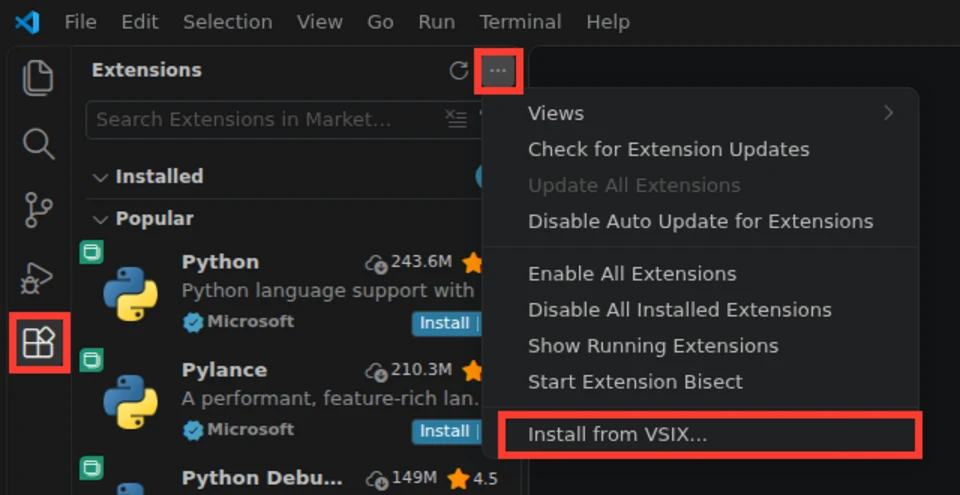
Install from VSIX. -
In the chat, Code ▾ → Open in VS Code. The extension shows whose chat it is and asks, then opens the workspace in a remote window. VS Code 1.133 or later is required.
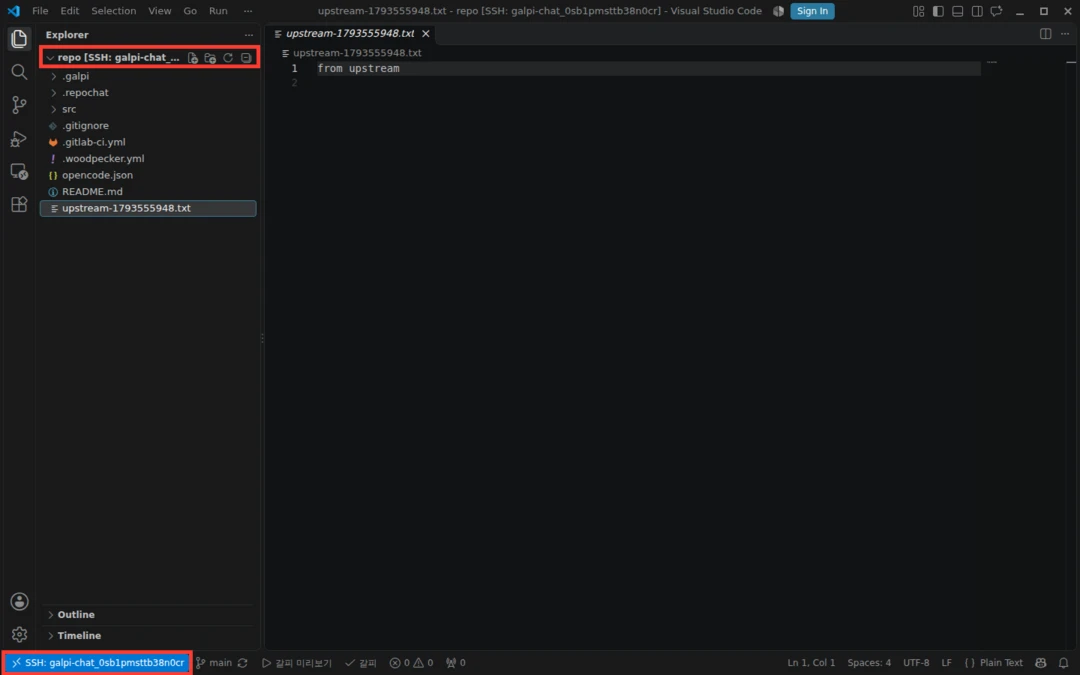
A VS Code remote window on the workspace.
- Microsoft's Remote - SSH ships inside the extension, so a computer without internet needs only this file (licensing is the operator's responsibility).
- The server takes SSH on port 2222 (
SSH_GATEWAY_PORT). - The extension updates itself only from the Galpi that installed it, and only when that Galpi's signature matches.
- Galpi's own Install the Galpi VS Code extension page (
/help/vscode) has the full steps with pictures.
Working alongside the agent
- The workspace stays awake while you use it and sleeps when you leave.
- On the next question the agent knows which files you changed.
- Update never drops commits made in the workspace (
galpi-saved/…).